
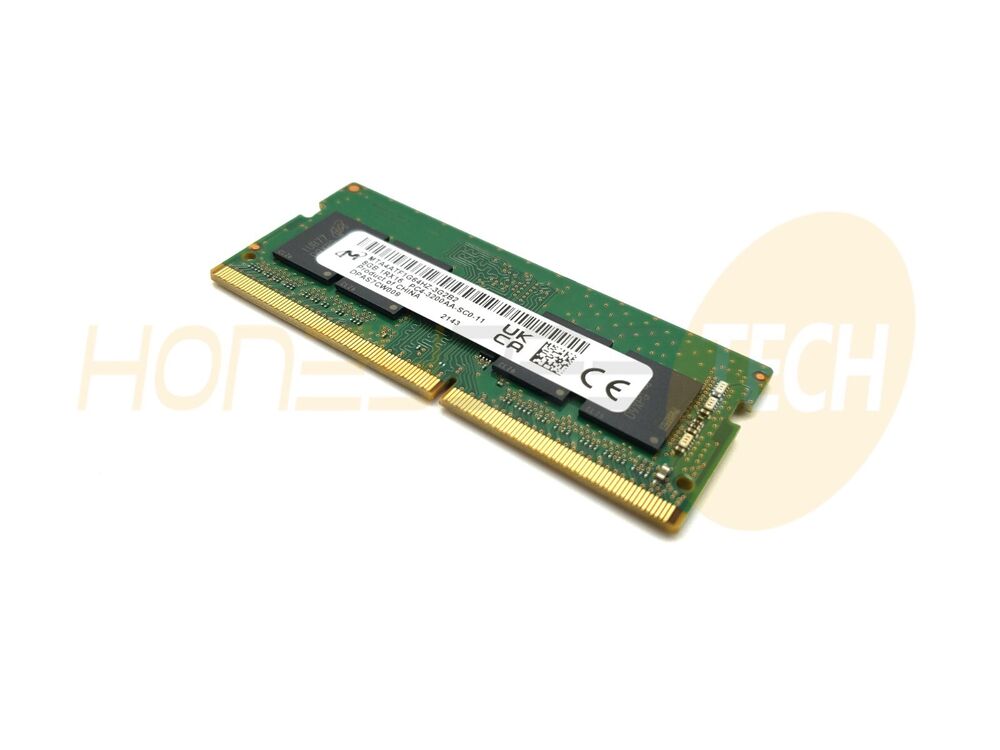

Upgrading your laptop's memory is one of the most effective ways to boost performance, yet the process can feel overwhelming for many users. Questions about compatibility, speed, capacity, and whether to choose DDR4 or wait for DDR5 dominate search results and technology forums daily. At Honeybee Technologies, we've spent over five years helping customers navigate the complex world of laptop memory upgrades, and we've compiled the most frequently asked questions into this comprehensive guide.
Whether you're a student struggling with multitasking, a creative professional working with demanding applications, or simply someone looking to extend your laptop's lifespan, understanding DDR4 RAM is essential. This article answers the questions that matter most—the ones that determine whether you'll make a smart upgrade decision or waste money on incompatible or unnecessary memory modules.
What Exactly Is DDR4 RAM and Why Does It Matter?
DDR4 stands for Double Data Rate Type 4 Synchronous Dynamic Random-Access Memory. In simpler terms, it's the temporary storage your laptop uses to hold active data and instructions while running applications. Unlike your laptop's storage drive (SSD or hard disk) which retains data permanently, RAM is volatile—it clears when you shut down your device.
DDR4 is the fourth iteration of DDR technology, released to the market in 2014. It brought significant improvements over DDR3, including higher data transfer speeds (starting at 2133 MT/s and reaching 3200 MT/s for common consumer modules), lower power consumption (1.2V compared to DDR3's 1.5V), and higher memory density. These advantages made DDR4 the standard for virtually all laptops manufactured between 2015 and 2023.
The "DDR" component of the name indicates that the memory transfers data twice per clock cycle—once on the rising edge and once on the falling edge of the clock signal. This doubling of data transfer is why DDR4-3200, for example, achieves speeds of 3200 megabits per second despite operating at a base clock of 1600 MHz. For users considering laptop upgrades, best DDR4 RAM options are widely available at competitive prices, making it an intelligent choice for performance-conscious buyers. Explore our comprehensive DDR4 RAM collection at Honeybee Technologies to find modules specifically tested for compatibility with popular laptop models.
How Much DDR4 RAM Does Your Laptop Actually Need?
This is perhaps the most consequential question because the answer directly impacts your budget and upgrade effectiveness. The ideal DDR4 capacity depends entirely on your specific use case.
For Basic Tasks (Web Browsing, Email, Office Work): 8GB DDR4 is technically sufficient in 2026. However, we recommend this only if your usage is genuinely light. A single background malware scan, a dozen browser tabs, and one Microsoft Word document can consume 4-5GB. Modern websites are memory-hungry, and OS overhead claims another 1-2GB. Eight gigabytes leaves minimal headroom for comfortable multitasking.
For Standard Multitasking and Gaming: 16GB is the sweet spot. This capacity accommodates most contemporary applications without performance degradation. Video editing with moderate timeline complexity, gaming, and simultaneous web browsing work smoothly with 16GB. This is why 16GB has become the standard configuration in mid-range laptops.
For Heavy Workloads (Content Creation, Virtual Machines, Data Analysis): 32GB is increasingly necessary. Video editors working with 4K footage, 3D artists rendering complex scenes, developers running multiple virtual machines, and data scientists processing large datasets should seriously consider 32GB upgrades. The productivity gains justify the investment.
For Professional Workstations: 64GB per slot (supporting up to 128GB total) is available in high-end DDR4 SODIMM formats, though DDR5 is more common at this capacity level. These configurations are specialized and seldom necessary for consumer users.
The practical recommendation: If you're upgrading, aim for 16GB minimum in 2026. Eight gigabytes is increasingly inadequate for modern software environments. Skipping from 4GB or 8GB to 16GB delivers dramatic performance improvements that most users will notice immediately. This represents an excellent return on investment.
DDR4 Speed: Does MHz Matter for Your Laptop?
Understanding DDR4 speeds is crucial because marketing language often confuses buyers. You'll see specifications like DDR4-2133, DDR4-2400, DDR4-2666, DDR4-3000, DDR4-3200, and occasionally higher speeds like DDR4-3600.
The Technical Explanation: These numbers represent the theoretical maximum data transfer rate in megabits per second. DDR4-3200 means the module transfers data at 3200 MT/s (megabits per second). Higher numbers theoretically provide faster performance.
The Practical Reality: Your laptop's motherboard and processor dictate which speeds it supports. Most laptops manufactured between 2015 and 2020 officially support DDR4-2133 or DDR4-2400. More recent models (2020 onwards) commonly support DDR4-3200. Your system will run all modules at the speed of your slowest installed module—a concept called "dual-channel degradation."
What This Means for Upgrades:
If your laptop shipped with DDR4-2400, installing a faster DDR4-3200 module forces both modules to operate at DDR4-2400. You won't experience the theoretical benefits of the faster module.
When adding a second memory module to existing RAM, prioritize matching the speed of your existing module. Compatibility trumps raw speed in practical scenarios.
For fresh upgrades or replacing existing RAM entirely, DDR4-3200 offers the best balance of performance and value in 2026. The speed difference between DDR4-2400 and DDR4-3200 is measurable (around 5-8% performance improvement in memory-intensive tasks) but not dramatic. Higher speeds like DDR4-3600 provide negligible additional benefits for typical laptop usage and cost significantly more.
Is DDR4 Better Than DDR3? And What About DDR5?
This comparison requires examining both historical context and current market positioning.
DDR4 vs. DDR3: DDR4 decisively outperforms DDR3. Higher bandwidth (up to 51.2 GB/s for DDR4-3200 versus 21.3 GB/s for DDR3-1600), lower latency, and significantly lower power consumption make DDR4 the clear winner. Additionally, DDR4 and DDR3 are physically incompatible—DDR3 modules won't fit into DDR4 slots and vice versa. Any laptop still running DDR3 in 2026 is over 7 years old, and upgrading the motherboard alongside RAM would be more practical than isolated memory replacement.
DDR4 vs. DDR5: This comparison is more nuanced. DDR5 offers superior theoretical specifications—bandwidth up to 64 GB/s, maximum speeds beyond 8400 MHz, and lower power requirements. However, real-world performance differences are modest. Testing shows DDR5 delivering approximately 5-20% performance improvements depending on the workload, with gaming improvements being smallest (2-5%) and creative applications showing larger gains (15-25%).
The Critical Factor: DDR5 costs approximately 40-60% more than equivalent DDR4 modules in February 2026. For users with DDR4-compatible laptops, the cost-to-performance ratio heavily favors DDR4 upgrades. DDR5 is valuable only if you're purchasing a new DDR5-compatible laptop or building a new system. Retrofitting existing DDR4 systems with DDR5 is impossible—they're electrically and physically incompatible.
For most users evaluating best DDR4 RAM options right now, DDR4 remains the intelligent choice. Its maturity, compatibility, and cost-effectiveness provide superior value compared to DDR5's premium pricing.
Can You Mix Different RAM Modules in Your Laptop?
Mixing RAM modules—adding a new stick to existing memory—is common when users want to upgrade without replacing their original module. This practice works, with important caveats.
The Compatibility Rules:
Same Speed Requirement (Strongly Recommended): Installing modules at different speeds forces both to operate at the slower speed. A DDR4-3200 module paired with a DDR4-2400 module results in both running at DDR4-2400. This doesn't damage anything, but you lose the performance benefits of the faster module.
Same Type Requirement (Usually): Most modern laptops support mixing brands (Corsair with Kingston, for example) without issues. Modern BIOS implementations are forgiving about brand mixing. However, I recommend matching brands when possible to minimize potential compatibility issues.
Same Capacity Recommendation (Optional): Matching capacities (e.g., two 8GB modules) provides slightly better performance than mismatched configurations due to optimized memory controller behavior. Mismatched capacities (8GB + 16GB) work fine functionally but may leave minor performance on the table.
Voltage Considerations: Standard DDR4 operates at 1.2V. Some high-performance modules operate at 1.35V. Mixing 1.2V and 1.35V modules may cause compatibility issues on some systems. Check your laptop's specifications or existing module voltage before purchasing upgrades.
Practical Recommendation: When upgrading, identify your existing module's manufacturer, speed, and capacity using utilities like CPU-Z or your system information panel. Match these specifications when purchasing new modules. This approach eliminates guesswork and ensures maximum compatibility.
Our DDR4 RAM collection at Honeybee Technologies includes detailed compatibility filters allowing you to select modules verified for your specific laptop model, eliminating the guessing game entirely.
What Are CAS Latency and Timings? Do They Matter?
CAS Latency (Column Address Strobe Latency), expressed as CL16, CL18, CL20, and so forth, measures the delay between when the memory controller requests data and when that data is delivered. The number represents clock cycles, not absolute time—lower numbers indicate faster response times.
Practical Impact: Lower latency provides faster data access. A DDR4-3200 CL16 module slightly outperforms a DDR4-3200 CL22 module in scenarios demanding rapid memory access. However, the real-world performance difference is approximately 2-5% in memory-intensive applications.
The Trade-Off: Lower latency modules cost more. A DDR4-3200 CL16 module might cost 20-30% more than a CL22 variant of identical capacity and speed. For average laptop users, this premium isn't justified by the minimal performance gain.
Purchase Recommendations:
For General Users: Focus on speed and capacity; accept standard latency values (CL18-CL22 for DDR4-3200).
For Gamers and Creators: Lower latency (CL16-CL18) provides measurable benefits in demanding applications and is worth the modest premium.
For Budget-Conscious Buyers: Higher latency values don't significantly handicap performance for typical workloads. Allocate budget toward capacity and speed rather than chasing ultra-low latency.
Reputable brands like Corsair, Kingston, G.Skill, Samsung, and Crucial all offer excellent value across latency and performance ranges. Our team at Honeybee Technologies can recommend specific modules matching your budget and performance requirements.
Which DDR4 RAM Brands Are Most Reliable?
RAM is arguably the most standardized computer component, yet brand does matter for reliability, warranty support, and performance consistency.
Tier 1 Brands (Highly Recommended):
Corsair: Corsair dominates the consumer memory market through consistent quality, excellent customer support, and strong warranty coverage (typically lifetime). Their Vengeance LPX line is specifically optimized for laptops.
Kingston: One of the oldest and most established memory manufacturers, Kingston delivers reliable modules at competitive prices. Their Value Memory line offers exceptional budget-friendly options.
G.Skill: Highly respected among enthusiasts and gamers, G.Skill modules are known for excellent performance and compatibility across diverse systems. Their Ripjaws V series is popular for laptop upgrades.
Samsung: As a memory chip manufacturer, Samsung maintains tight quality control. OEM modules in many laptops come from Samsung, making their branded modules excellent for matching existing configurations.
Crucial: Part of Micron Technology, Crucial offers straightforward, reliable modules with competitive pricing. Their Ballistix line delivers excellent performance-per-dollar value.
Tier 2 Brands (Good Alternative Options):
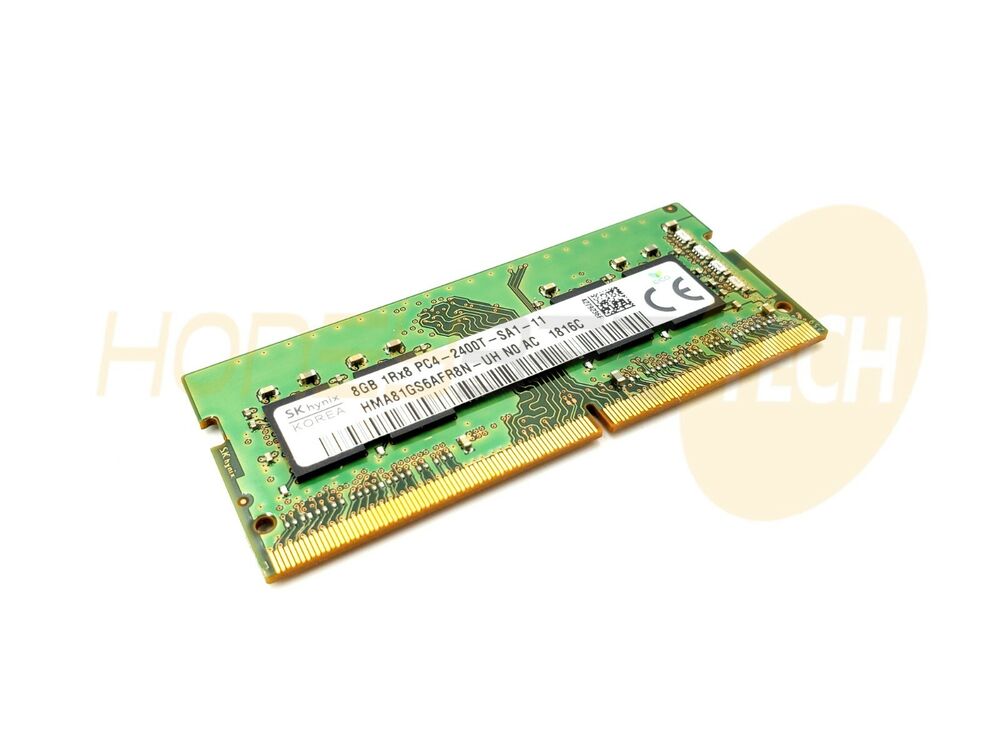
ADATA, Patriot, SK Hynix, Transcend: These brands manufacture quality memory at slightly lower price points. While less prominent in consumer marketing, they're reliable choices for budget-conscious upgrades.
Brands to Approach with Caution:
Extremely low-cost, lesser-known brands occasionally surface on marketplaces. While failure rates aren't necessarily higher, warranty coverage may be minimal, and compatibility issues are more likely. Saving $10-20 on a memory module isn't worth potential system instability or warranty headaches.
Professional Recommendation: Choose modules from Tier 1 brands when possible. The modest price premium over budget alternatives buys peace of mind, better warranty coverage, and higher reliability.
FAQs: DDR4 RAM, Compatibility, and Purchasing Decisions
Q: What's the maximum amount of DDR4 RAM a laptop can support?
A: This varies by laptop model and motherboard design. Most modern laptops support 16GB to 32GB maximum. High-end laptops occasionally support 64GB. Check your specific laptop model's specifications on the manufacturer's website. DDR4 SODIMM modules (used in laptops) max out at 32GB per module, allowing theoretical maximums of 64GB (with two 32GB modules).
Q: Is it safe to open my laptop and install RAM myself?
A: Yes, for most laptops. RAM installation is among the safest DIY upgrades—it's nearly impossible to damage the module or system through normal handling. Ensure you're grounded to prevent static discharge (touch a metal part of the chassis first), fully power down the laptop, and follow manufacturer-provided guidance. YouTube tutorials for your specific laptop model provide visual installation steps.
Q: Will upgrading DDR4 RAM void my laptop warranty?
A: Typically no, for memory upgrades specifically. Most manufacturers' warranties explicitly cover user-replaceable components like RAM. However, check your specific warranty documentation. If your laptop is still under manufacturer warranty, verify component replaceability before opening the case.
Q: What's the actual speed difference between DDR4-2400, DDR4-3200, and DDR4-3600?
A: In real-world laptop usage, the difference is subtle. DDR4-3200 provides approximately 5-10% performance improvement over DDR4-2400 in memory-intensive workloads. DDR4-3600 adds an additional 2-4% improvement over DDR4-3200. For most users, these differences are imperceptible during typical tasks like web browsing, document editing, or video playback.
Q: Can I use DDR4 modules rated at 1.35V in a system requiring 1.2V modules?
A: This is risky. Installing higher voltage modules in a system designed for standard voltage can potentially damage the memory controller. Always match voltage specifications. If you're unsure of your system's voltage requirements, check using CPU-Z or consult your laptop's manual.
Q: How do I know if my laptop uses DDR4 or DDR5?
A: Check your laptop's technical specifications on the manufacturer's website using your model number. Alternatively, open your laptop and visually inspect the module—DDR4 SODIMM modules have a notch located differently than DDR5 modules. You can also use system utilities like CPU-Z (Windows) or Terminal (Mac) to identify your current memory type.
Q: Is upgrading to 32GB worth it if I only do light browsing and office work?
A: Probably not. Sixteen gigabytes is more than sufficient for light workloads in 2026. Upgrading to 32GB would improve responsiveness minimally and wouldn't justify the additional expense. Allocate your budget toward storage upgrades (SSD) or other components if your primary needs are basic computing.
Q: What's the difference between SODIMM and standard DIMM?
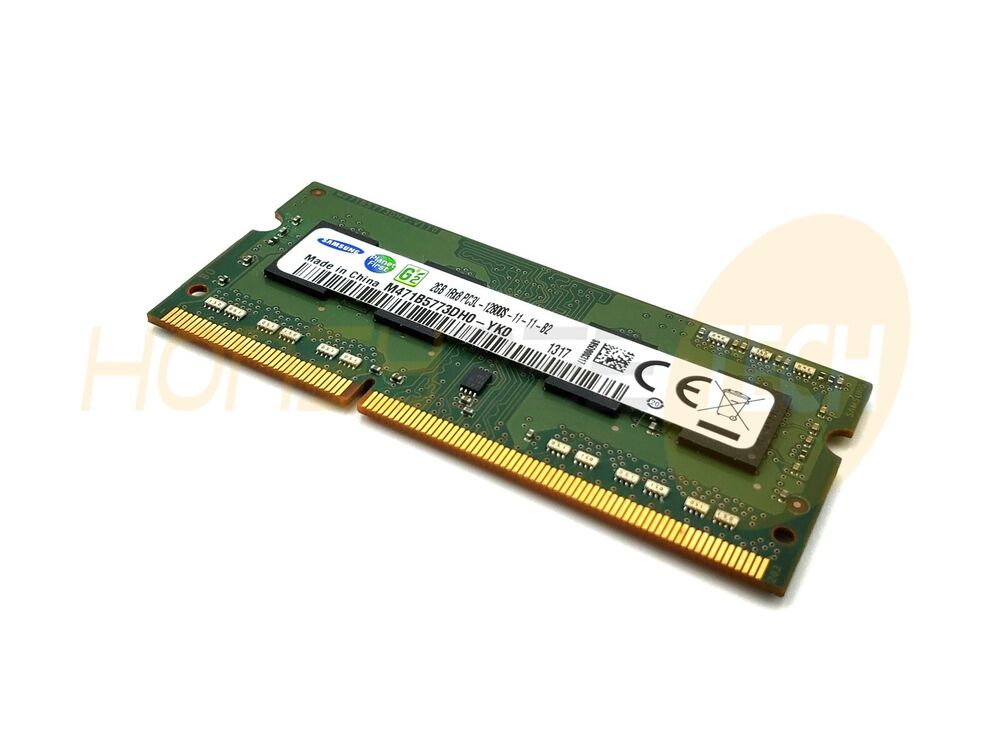
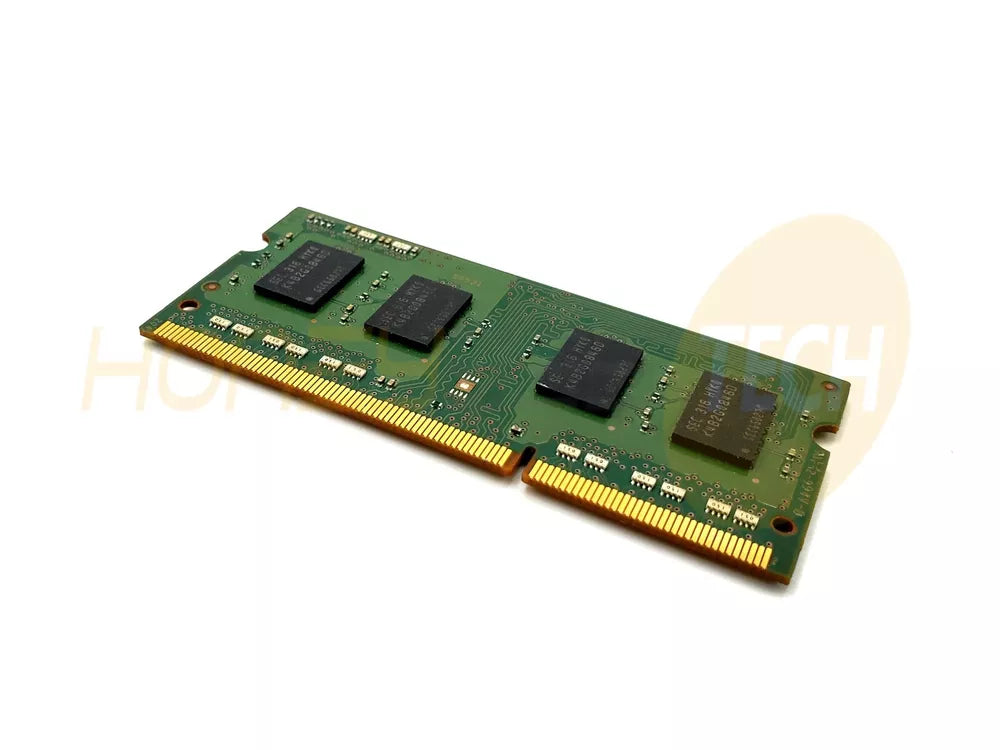
A: SODIMM (Small Outline DIMM) modules are physically smaller, designed specifically for laptops and compact devices. Standard DIMM modules are larger and fit only in desktop computers. They're electrically equivalent but incompatible due to physical form factor differences. All laptop upgrades require SODIMM modules—standard DIMM modules won't fit.
Q: Will upgrading RAM make my laptop faster for gaming?
A: Yes, but with caveats. Increasing RAM from 4GB to 8GB or 8GB to 16GB provides noticeable FPS improvements in demanding games. However, if you already have 16GB, upgrading to 32GB won't significantly improve gaming performance. Gaming performance is limited primarily by your GPU; RAM is secondary unless insufficient RAM causes stuttering and frame drops.
Q: How do I check my laptop's maximum supported memory?
A: Consult your laptop manufacturer's official specifications page (Dell, HP, Lenovo, etc.). Enter your laptop model number into the support search. The specifications page lists official maximum memory capacity. Alternatively, contact the manufacturer's support line or check your system's original documentation.
Conclusion
DDR4 RAM remains the intelligent choice for most laptop users in 2026. With prices elevated from 2025 lows but stabilizing in early Q2, and compatibility with millions of existing laptops, DDR4 upgrades deliver exceptional value and reliability. The questions addressed in this guide—regarding capacity, speed, compatibility, and brand reliability—represent the genuine concerns that determine successful, satisfying upgrades.
The most important takeaway: Sixteen gigabytes is the minimum capacity for comfortable 2026 computing. Whether you're upgrading from 4GB or 8GB, this single boost transforms your laptop's responsiveness and capability. The performance gains from 4GB to 16GB are so dramatic that virtually any user will perceive immediate improvements.
Secondary considerations—speed optimization, latency tuning, and premium brand selection—matter far less than ensuring sufficient capacity and basic compatibility. A budget DDR4-3200 CL22 module from a reputable brand outperforms a theoretical high-performance module from an unreliable manufacturer.
At Honeybee Technologies, our team of memory experts—with over five years of real-world upgrade experience—stands ready to help you select the perfect DDR4 configuration for your specific laptop and requirements. Our DDR4 RAM collection features modules pre-verified for compatibility with hundreds of laptop models. Visit our homepage to explore our complete range of laptop upgrade solutions, or contact our support team for personalized recommendations tailored to your exact device specifications.
Honeybee Technologies
- Address: 499 Plaza Drive, STE C Atlanta, GA 30349
- Email: orders@honeybee-technologies.com
- Phone: (404) 549-7871
We're here to answer your questions about DDR4 RAM compatibility, selection, and installation. Our team has handled thousands of laptop upgrades and can provide confident guidance for your specific device and performance needs. Reach out today for expert consultation on the best DDR4 upgrade path for your laptop.