
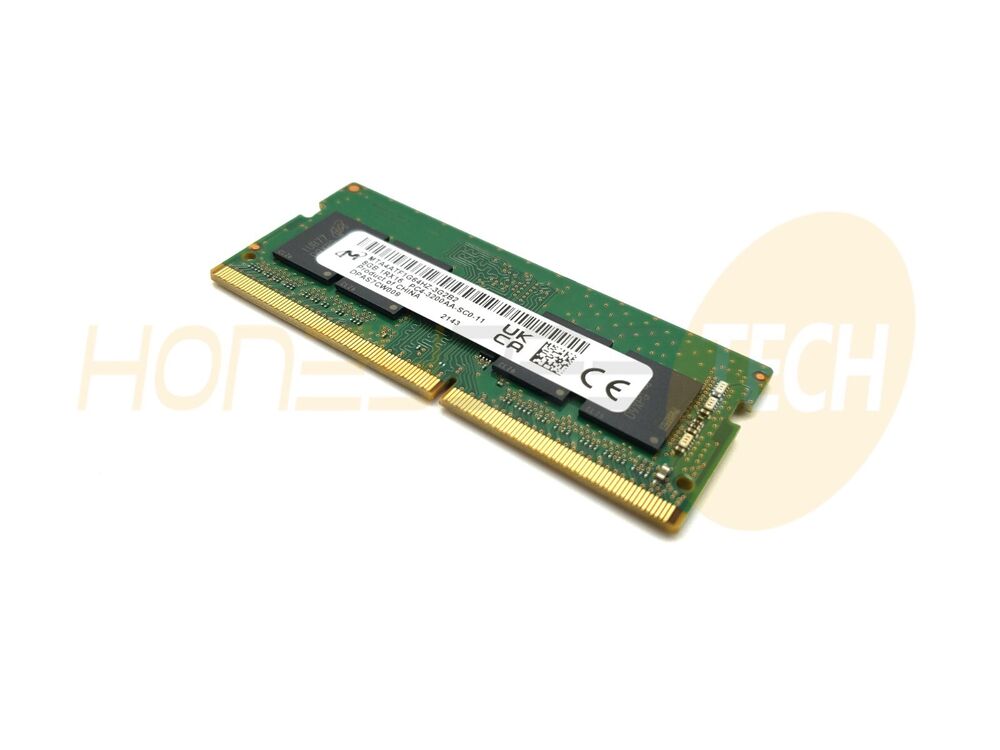

Your RAM is significantly underperforming right now. While you might have invested in premium DDR4 memory with advertised speeds of 3200 MHz, 3600 MHz, or even higher, many users never unlock these speeds out of the box. By default, motherboards configure RAM to run at JEDEC standard 2133 MHz—a legacy setting that leaves performance on the table. Properly configuring BIOS settings for DDR4 stability and performance is the difference between average gaming experiences and truly responsive systems. This comprehensive guide reveals the exact BIOS settings that separate optimal performance from unrealized potential in your memory investment.
Why Default BIOS Settings Are Holding Back Your DDR4 RAM
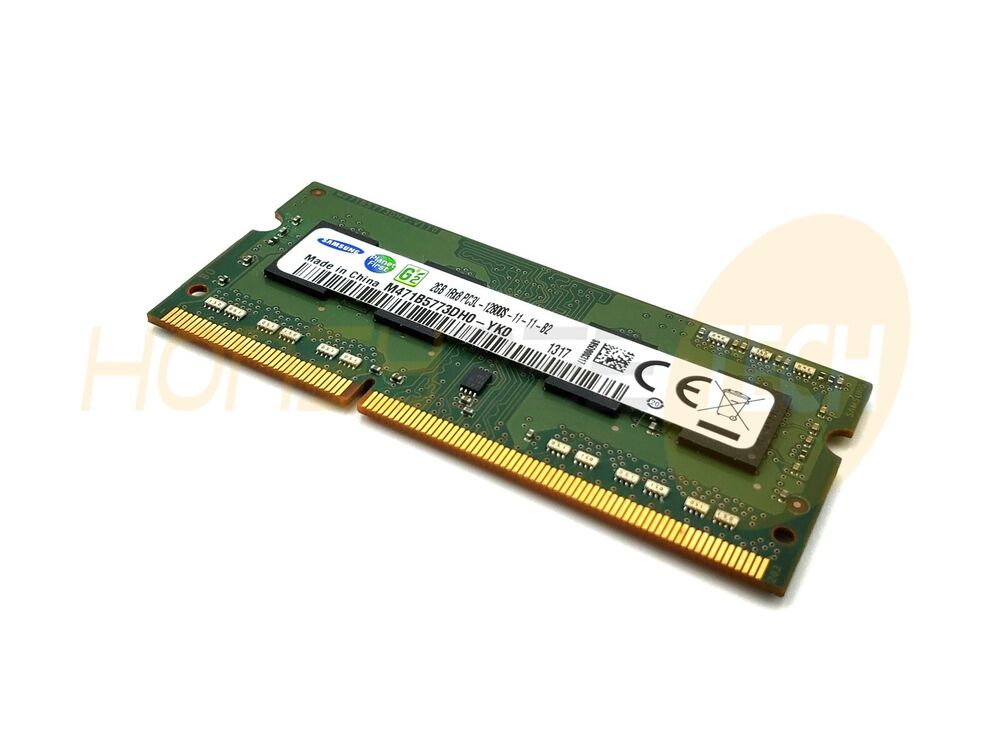
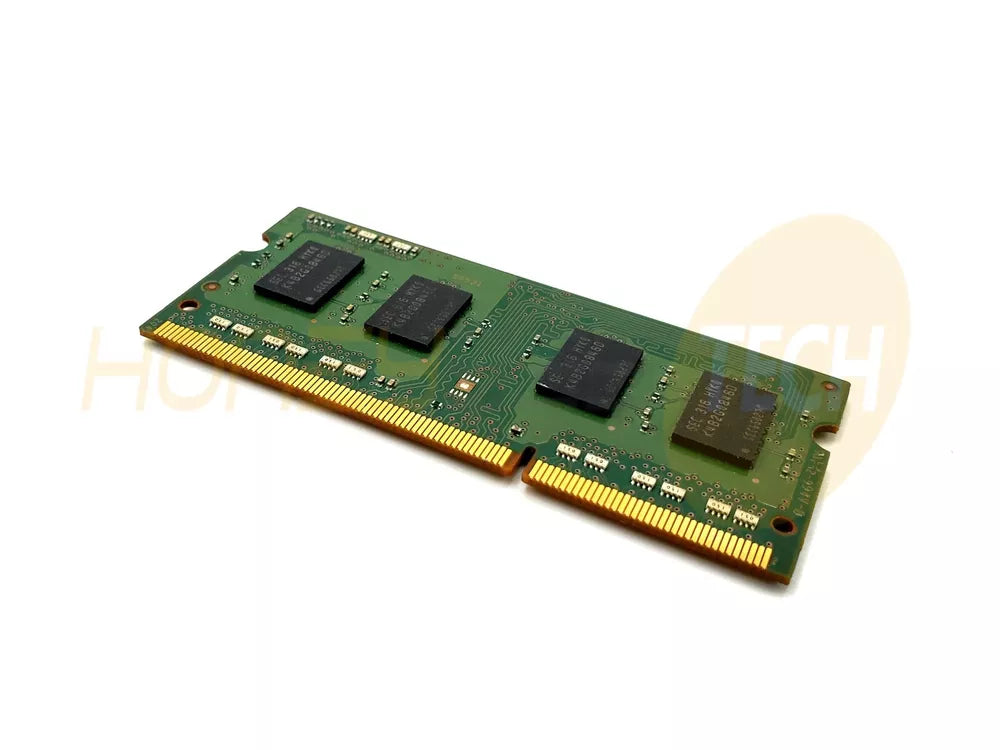
Modern DDR4 memory kits—whether you've chosen Corsair Vengeance, G.Skill Trident Z, Kingston Fury, or any other premium brand—arrive with manufacturer-tested performance profiles. However, your motherboard's BIOS doesn't automatically activate these profiles by default. Instead, it uses conservative JEDEC specifications designed for universal compatibility across all systems. This approach prioritizes stability over performance, leaving DDR4 kits running at speeds far below their rated capabilities. For gaming enthusiasts and content creators, this represents a significant performance loss that can be recovered through intelligent BIOS configuration.
Performance gains from proper DDR4 optimization range from 2-8% in gaming contexts, with even larger improvements visible in 1% lows (the minimum frame rates during demanding moments). In CPU-intensive games like Microsoft Flight Simulator, Horizon Zero Dawn, and competitive titles like Valorant, properly configured DDR4 RAM delivers noticeably smoother experiences with reduced stuttering and faster load times.
Understanding XMP and DOCP: Your Shortcut to Performance
The easiest path to unlocking your DDR4 potential involves a single BIOS setting: XMP (Extreme Memory Profile) for Intel systems or DOCP (Direct Overclock Profile) for AMD systems. Despite the name, enabling XMP/DOCP isn't true overclocking in the risky sense—these are manufacturer-tested profiles burned directly into your RAM modules at the factory. When activated, your BIOS automatically adjusts three critical parameters: DRAM frequency, memory timings, and DRAM voltage.
What happens when you enable XMP/DOCP?
Your motherboard reads the profile stored in your RAM's SPD (Serial Presence Detect) chip. For example, a DDR4-3600 CL18 kit with 1.35V will have all three values automatically applied. Your system boots with DRAM frequency jumping from 2133 MHz to 3600 MHz, timings adjusted to 18-22-22-42 (or the kit's specifications), and voltage set to 1.35V. This single action delivers consistent, manufacturer-validated performance.
To enable XMP/DOCP in BIOS, access your motherboard's settings during startup (typically Delete key for ASUS/MSI, F2/F12 for Gigabyte). Navigate to the overclock or advanced memory section—exact labels vary by manufacturer. Select "XMP I" (Intel) or "DOCP" (AMD), then save and reboot. Your system should boot normally with significantly improved memory performance.
Manual DDR4 Tuning: Going Beyond XMP
For users comfortable with advanced configurations, manual memory tuning offers incremental performance improvements beyond XMP defaults. This approach requires understanding primary timing parameters and their relationships.
Primary DDR4 Timing Parameters Explained
CAS Latency (tCL) represents clock cycles between a memory request and data arrival. Lowering from 18 to 16 reduces latency but may require voltage increases for stability. RAS to CAS Delay (tRCD) specifies time between row activation and column selection—lower values improve performance during sequential access patterns. RAS Precharge Time (tRP) defines how quickly a row closes; values typically range 15-18 cycles. RAS Active Time (tRAS) sets total time a row remains open before closing, usually 35-42 cycles.
For manual tuning, the "hybrid method" works best for most users. Enable XMP first—this is your stability foundation. Then adjust only three primary timings while leaving secondaries on auto. For example, if your XMP profile shows CL18-22-22-42, attempt tightening to CL17-21-21-41 (reducing each by one). Boot and test. If stable, continue tightening incrementally. If unstable, increase voltage slightly (0.02V increment) rather than loosening timings.
Voltage Configuration: The Stability Foundation
DDR4 voltage management is fundamental to achieving stable high-frequency operation. The default JEDEC voltage of 1.2V supports speeds up to 2400 MHz. Moving to 3200 MHz requires 1.35V, while 3600+ MHz typically uses 1.35-1.4V. For 24/7 stable operation, stay below 1.4V unless you're an experienced overclocker with proper cooling.
Beyond DRAM voltage, two secondary voltages deserve attention: CPU VCCIO voltage and CPU System Agent voltage. These support the memory controller integrated into your processor. Set CPU VCCIO to 1.10V initially, increasing to 1.15V if you encounter stability issues. Set CPU System Agent voltage to 1.15V, adjustable to 1.20V for higher frequency profiles. These small adjustments significantly improve stability without introducing risk.
Testing for Stability: The Non-Negotiable Step
Configuring BIOS settings is meaningless without verification. Always stress-test your memory configuration after changes. Free tools like TestMem5 provide rapid stability assessment, typically requiring only 30 minutes to 2 hours to catch errors. For critical systems, extend testing to 4-24 hours using dedicated memory stress tools.
MemTest86, Prime95 (blended mode), OCCT, and Karhu Memory stability are industry-standard tools. Many enthusiasts run multiple testing tools—use TestMem5 for quick fault detection, then confirm with MemTest86 for longer-term validation. If errors appear during testing, revisit your BIOS settings. Either increase voltage slightly (0.02V), loosen timings (increase numbers by 1-2), or reduce target frequency by 100-200 MHz.
DDR4 Performance Gains in Real-World Gaming
Modern games respond dramatically to proper memory configuration. Real-world benchmarks demonstrate DDR4-3600 delivering 2-8% higher average frame rates compared to DDR4-3200, with 1% lows improving even more substantially. In CPU-limited gaming scenarios—high-resolution settings that shift processing load onto your processor—these gaps widen further.
At Honeybee Technologies, we stock premium DDR4 kits from Corsair, G.Skill, Kingston, and Crucial—all engineered with XMP profiles that deliver these performance gains when properly configured. Our carefully selected inventory includes low-latency kits (CL14-16) optimized for Intel systems and balanced performers suited for AMD Ryzen builds.
When selecting DDR4 for gaming, understanding effective speed matters. A DDR4-3200 CL16 kit and DDR4-3600 CL18 kit deliver similar effective performance (speed ÷ latency = 200 for both). However, DDR4-3600 CL16 clearly outperforms both. Visit our comprehensive DDR4 RAM collection to compare specifications, latencies, and RGB options.
Troubleshooting Common BIOS Configuration Issues
System Won't Boot After Enabling XMP
First response: allow 3-5 reboot attempts. Some motherboards reset to safe settings automatically. If the system remains stuck, the BIOS likely reverted to defaults. Enter BIOS again, reduce target frequency by 100 MHz (from 3600 to 3500, for example), or increase DRAM voltage by 0.02V. Less commonly, your motherboard firmware may need updating for proper compatibility with your specific RAM kit.
System Crashes During Gaming After BIOS Changes
This typically indicates instability from aggressive timings or insufficient voltage. Loosen primary timings first (increase CAS latency by 1 cycle), then stress-test briefly. If stable, continue tightening. If still crashing, increase DRAM voltage by 0.02V and retest. Most gaming crashes resolve within 2-3 adjustment cycles.
Performance Didn't Improve After Enabling XMP
Verify that XMP actually enabled by checking CPU-Z (available free online). Navigate to the Memory tab and confirm DRAM frequency matches your kit's specification. Occasionally, XMP fails to boot, and your motherboard silently reverts to defaults. If CPU-Z shows 2133 MHz instead of 3600 MHz, manually select XMP I in BIOS again, save, and monitor the boot process.
Frequently Asked Questions
Q: Is enabling XMP truly safe for long-term use?
A: Yes. XMP profiles are manufacturer-tested and validated by Intel/AMD specifications. Enabling factory-tested XMP is safe for continuous operation. Manual overclocking beyond XMP carries slightly higher risk but remains safe within recommended voltage limits.
Q: Will BIOS tweaks void my warranty?
A: Typically, enabling manufacturer XMP profiles doesn't void warranties. However, manual overclocking beyond specifications may affect warranty coverage. Consult your motherboard and RAM manufacturer's specific policies.
Q: How much performance improvement will I actually see?
A: Real-world gaming gains range from 2-8% depending on your CPU and game engine. CPU-intensive games show larger gains; GPU-limited scenarios show minimal improvement. Competitive gaming titles benefit most noticeably.
Q: What's the difference between CL16 and CL18 DDR4?
A: CAS Latency (CL) represents clock cycles for data retrieval. CL16 is lower latency (faster response) than CL18, but effective performance depends on frequency. A DDR4-3600 CL16 outperforms DDR4-3200 CL16, but DDR4-3200 CL16 and DDR4-3600 CL18 perform similarly.
Q: Can I mix different DDR4 kits in one system?
A: While possible, mixing kits of different speeds/timings forces your motherboard to use the slower kit's specifications for both, negating performance advantages. Stick with matched pairs for optimal performance and stability.
Conclusion
Your DDR4 investment deserves to perform at its rated capabilities. By properly configuring BIOS settings—starting with simple XMP/DOCP activation and advancing to manual timing optimization for performance enthusiasts—you unlock 2-8% performance improvements that translate directly to smoother gaming, faster content creation, and more responsive multitasking.
The process requires no special tools beyond your motherboard's BIOS interface. Risk is minimal when following manufacturer guidelines and voltage recommendations. Stability testing takes just hours with free software. The payoff—unlocking your DDR4's full potential—justifies the modest effort.
Ready to maximize your gaming performance? Browse our premium DDR4 RAM selection at Honeybee Technologies, featuring carefully curated kits from Corsair Vengeance, G.Skill Trident Z, Kingston Fury, and Crucial—all engineered with the profiles and specifications this guide covers. Our team of memory experts is ready to help you select the perfect DDR4 kit for your gaming or productivity build.